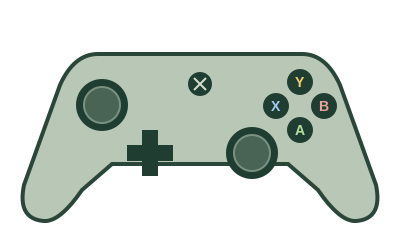
Xbox-style controller
Connect to your PC, check Steam detects it, then try a Standard layout. Standard Xbox controllers do not have a gyro sensor.
 Console Fit Check
Deadlock beta · Controller guide
Deadlock has Steam Input layouts for controllers. Start with a current layout, test your controls in practice, and use the checks below if the beta stops detecting your gamepad.
Sources checked .
Valve’s December 6, 2024 patch notes introduced three official Steam Input control schemes: Standard, Gyro and FlickStick. This documents controller layouts, but does not guarantee every device or binding works in every beta build.
Recent player reports describe cases where Steam detects a controller but Deadlock does not. If that happens, work through detection before spending time changing individual buttons.
Connect to your PC, check Steam detects it, then try a Standard layout. Standard Xbox controllers do not have a gyro sensor.
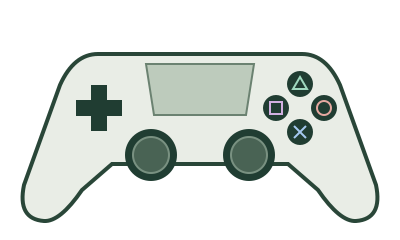
Sony supports USB and Bluetooth connections on compatible Windows PCs. Steam Input supports its gyro; the selected layout still needs to use it.
Illustrations show hardware layout, not a Deadlock control preset. PC connection does not guarantee game-specific features such as adaptive triggers.
Menu labels and available layouts can change with Steam and Deadlock updates. Keep a keyboard and mouse available while configuring.
Choose the description that matches your test.
Try a different USB port and a known working data cable, or check the controller’s Bluetooth pairing in Windows. Restart Steam and repeat its input test. If inputs still do not register, use the controller maker’s connection and firmware guidance before changing Deadlock settings.
Close Deadlock, check its Steam Input setting and current layout, then launch it from Steam. If you already use an external remapper, temporarily close it to isolate conflicting mappings, then test again.
Optional player-reported test: at the main menu, reconnect the controller and check the controller-settings pane again. Forum replies report mixed results; this is not a guaranteed fix or a Valve-confirmed solution. Try it outside a match.
If the problem persists, record your controller model, connection type, layout and game build for a bug report. A recent forum thread describes Steam detecting devices while Deadlock reports no controller; keyboard mappings working through Steam Input do not prove the game’s controller actions are working.
Open Controller Layout and review button assignments, action sets and layers. A community layout may map keyboard keys rather than native game actions. Keyboard prompts can reflect those mappings, so check the actual action in practice. Return to a current official layout as a comparison, then change one binding at a time.
Avoid copying an unexplained button preset: Deadlock needs access to abilities, items and movement actions, and your preferred grip and hardware matter.
Yes, a DualSense can connect to supported Windows PCs by USB or Bluetooth. Use Steam’s input test and a Deadlock Steam Input layout. Connection support alone does not guarantee every feature or beta build will work.
Standard Xbox controllers do not have a gyro sensor. Selecting a Gyro layout cannot add that hardware. Use a suitable gyro-capable controller and a compatible Steam Input configuration.
No. This guide covers controllers connected to a PC. See our Deadlock compatibility guide for the checked platform and requirements information.
There is no single verified best preset for every controller and player. Begin with a current official layout, then test aim sensitivity and access to important actions in practice. We have not performed hands-on controller testing for this guide.
Deadlock is changing during development. The historical patch establishes layout support; player reports describe issues and do not establish that every player is affected.